> For the complete documentation index, see [llms.txt](https://docs.scraperapi.com/llms.txt). Markdown versions of documentation pages are available by appending `.md` to page URLs; this page is available as [Markdown](https://docs.scraperapi.com/account-management/analytics.md).
# Analytics 🆕
The analytics page provides a detailed view of your scraping activity. It is great for tracking usage, monitor API performance and gaining better visibility into your operations. The data is presented at a granular level, covering metrics such as average latency, number of domains scraped, average concurrency, and other performance-related indicators.
### Analytics Overview
The Overview page brings everything in one place. It combines monitoring charts, domain analytics, usage summary and error logs into a single view, allowing you to quickly understand your activity, identify performance bottlenecks (if any) and optimize efficiency.
**Usage & Renewal Date:**
* This counter helps you keep track of the API Credits consumed in your current cycle and when your plan resets.
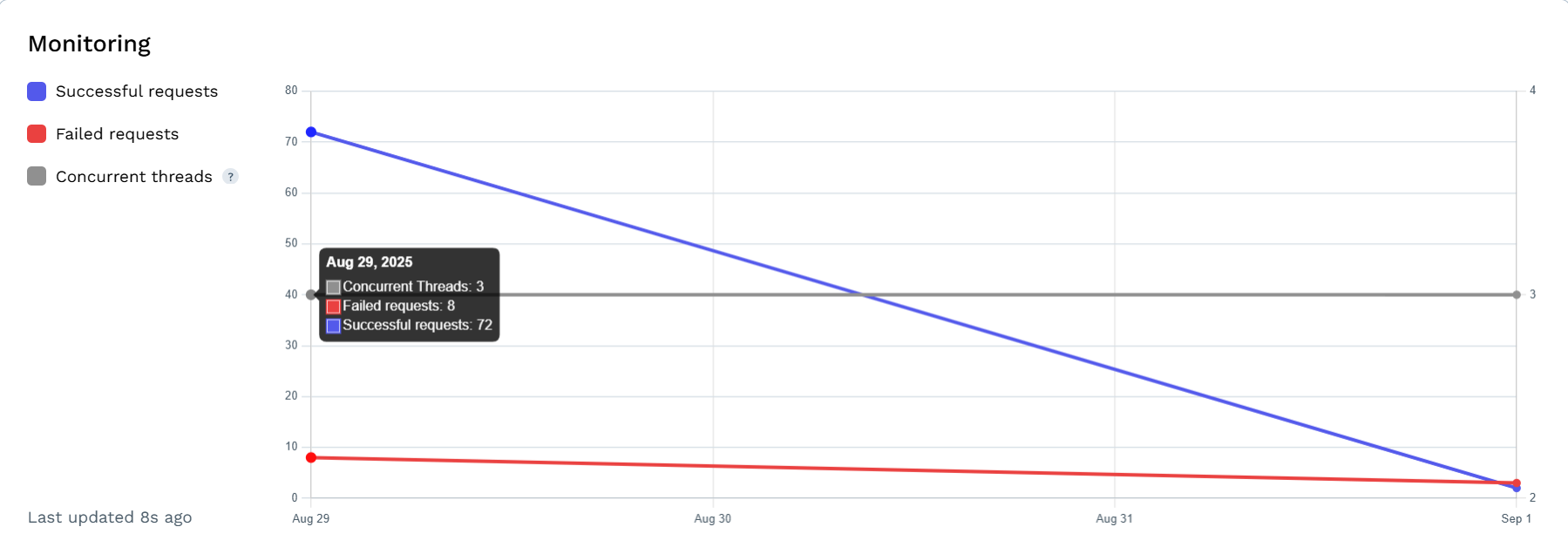
#### Monitoring Chart:
* A timeline of successful requests, failed requests and concurrent threads utilized/
#### Usage Summary Cards:
* Shows request volume, success rate, average latency, concurrent threads utilized (avg), total number of domains scraped and cost in API Credits.
#### Domain Analytics (preview):
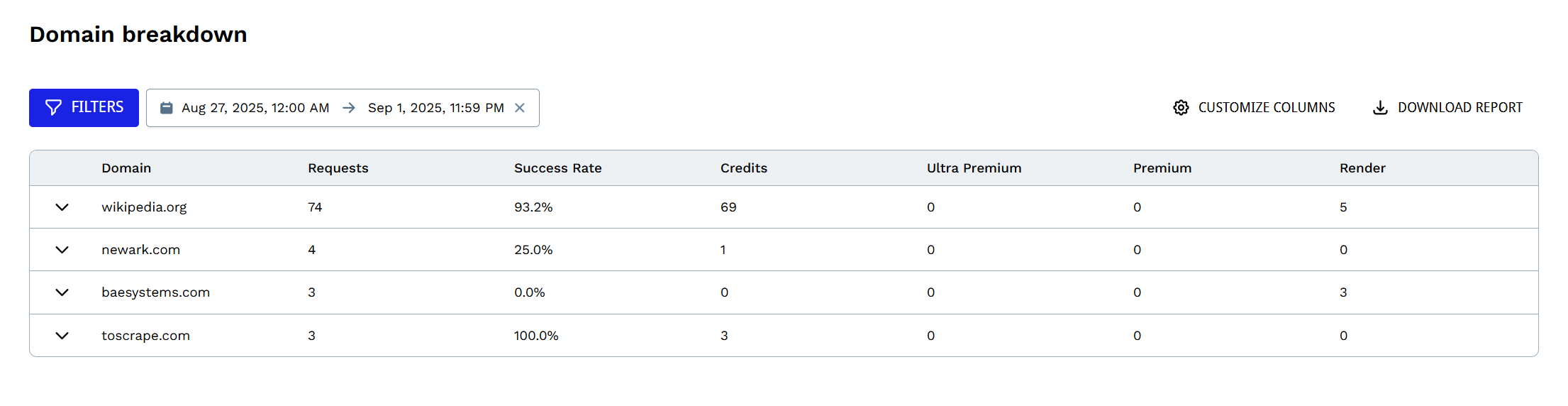
* A table view of the domains that you have scraped for the selected period. It shows number of requests, success rate, amount of API Credits spent on those requests and additional parameters that have been used (if any).
#### Error Logs (preview):
* This area shows failed requests, including details like request ID, timestamp, severity, URL, status code, and retries.
### Domain Analytics
Here you'll find a detailed domain-level breakdown of your scraping activity - number of requests, success rate, credits used and extra parameters (if applicable).
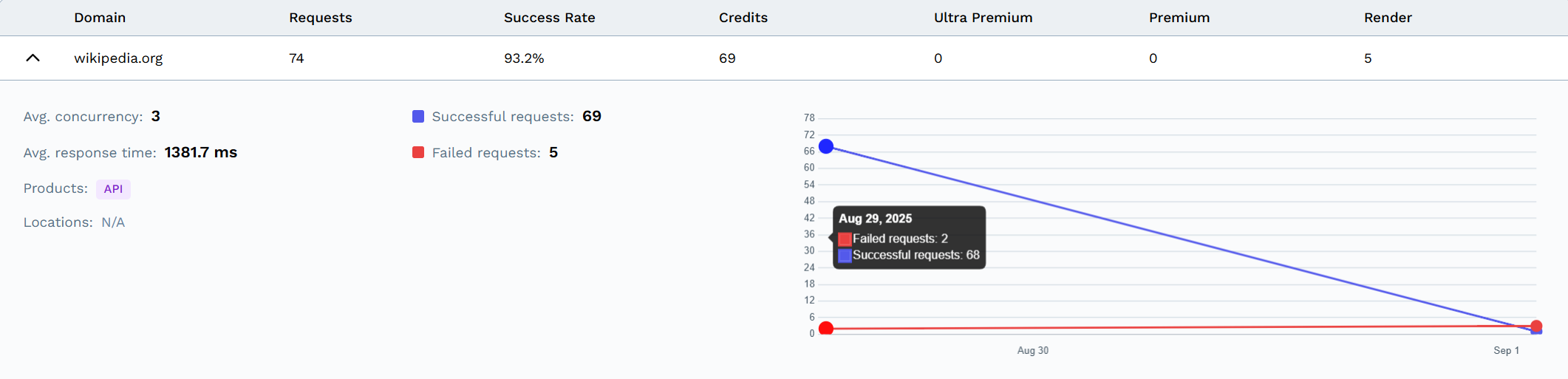
Clicking on a domain expands it into a detailed view, providing you with information about the average concurrency, average latency, product used (API, Async API, Crawler, SDE API. etc.) and a chart that portrays the successful and failed requests for that domain alone.
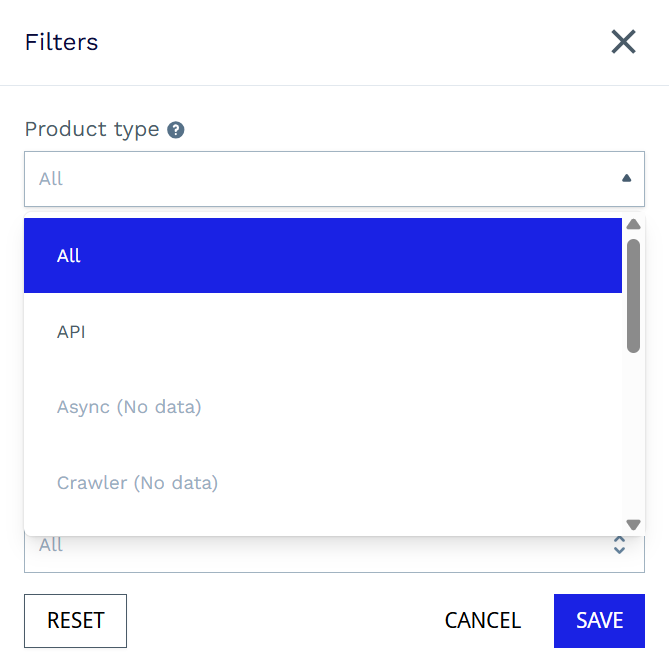
There are plenty of filters at your disposal, helping you refine the data shown on the page.
* Product type - product used (API, Async API, Crawler, SDE API, etc.).
* Parameters - only show requests with specific parameters applied.
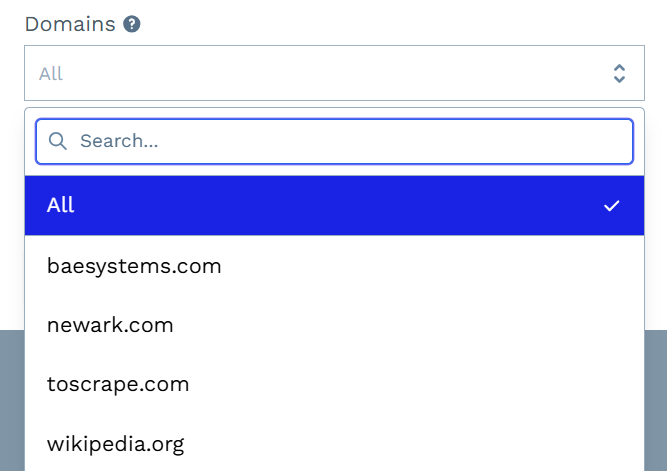
* Domains - select the number of domains that should be included in the view (multiple selection allowed).
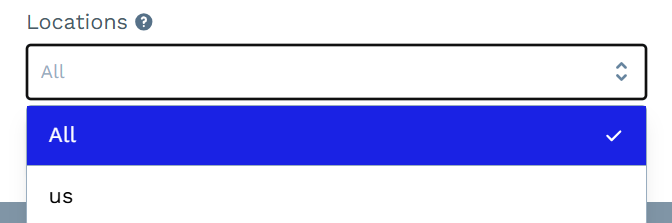
* Location - View only geotargeted requests for the selected domains.
To remove a filter, just click the 'x' next to its label.
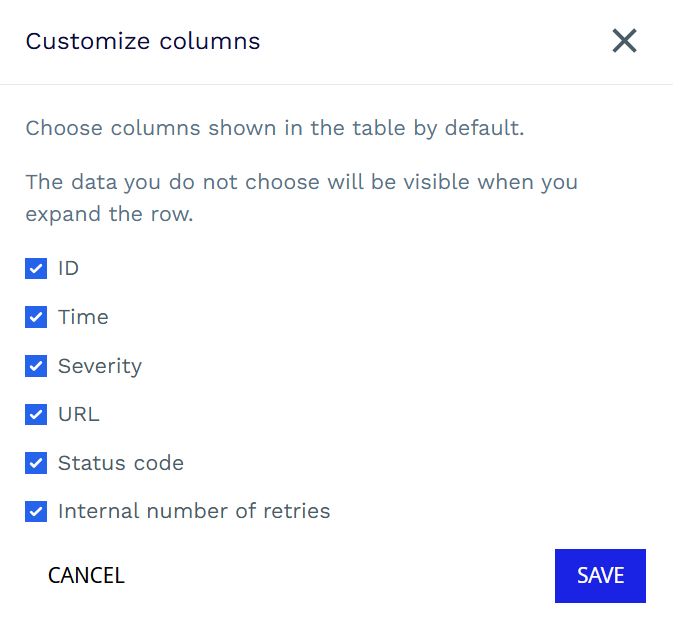
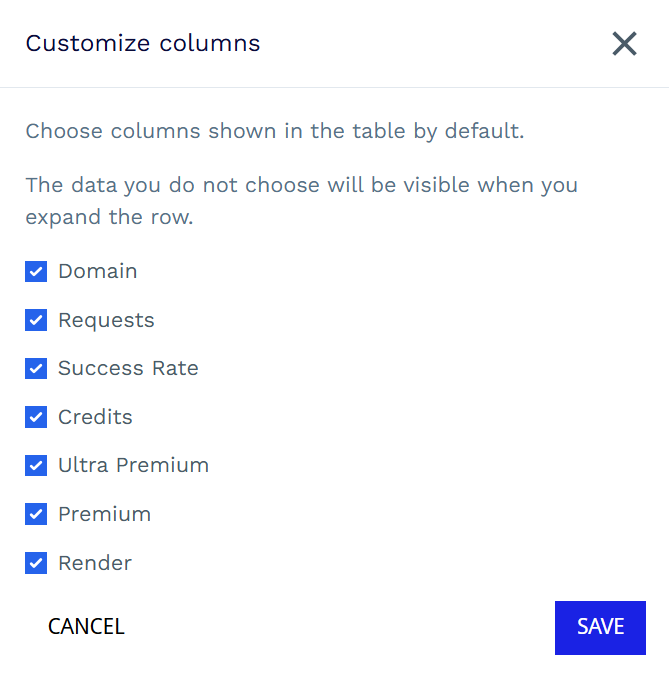
The *Customize Columns* button allows you to show/hide table fields:
### Error Logs
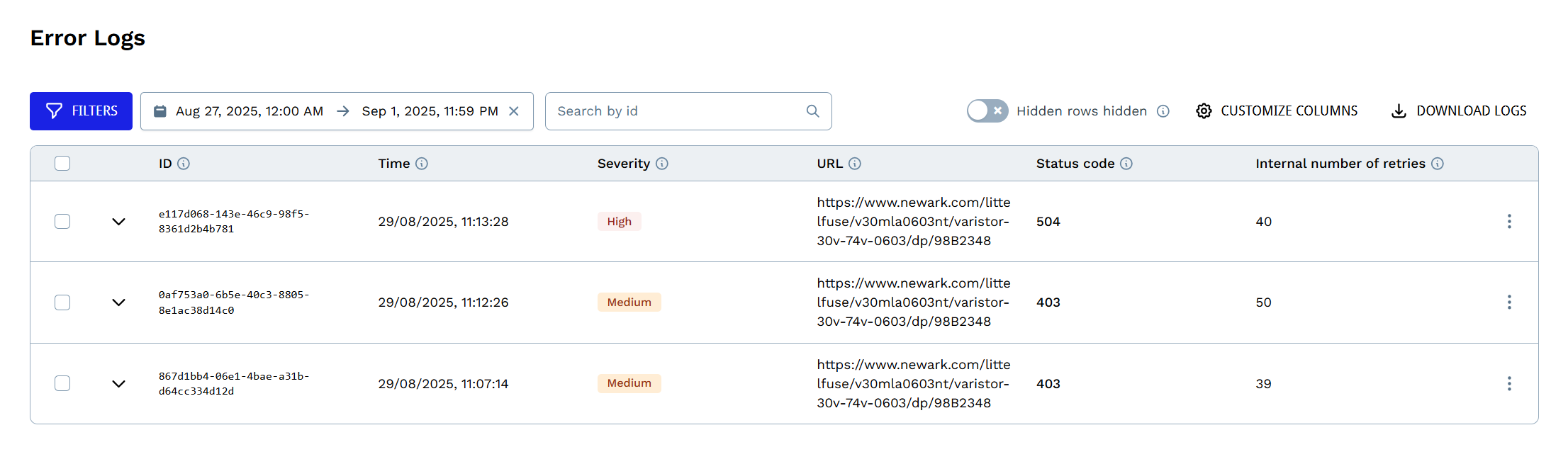
This section will help you understand more about the requests that failed. Each entry includes request ID, a timestamp, severity level, exact URL scraped, the status code returned for the request and how many retries were performed. This information will help you troubleshoot problematic domains, identify common errors and decide whether adjustments to your setup are necessary.
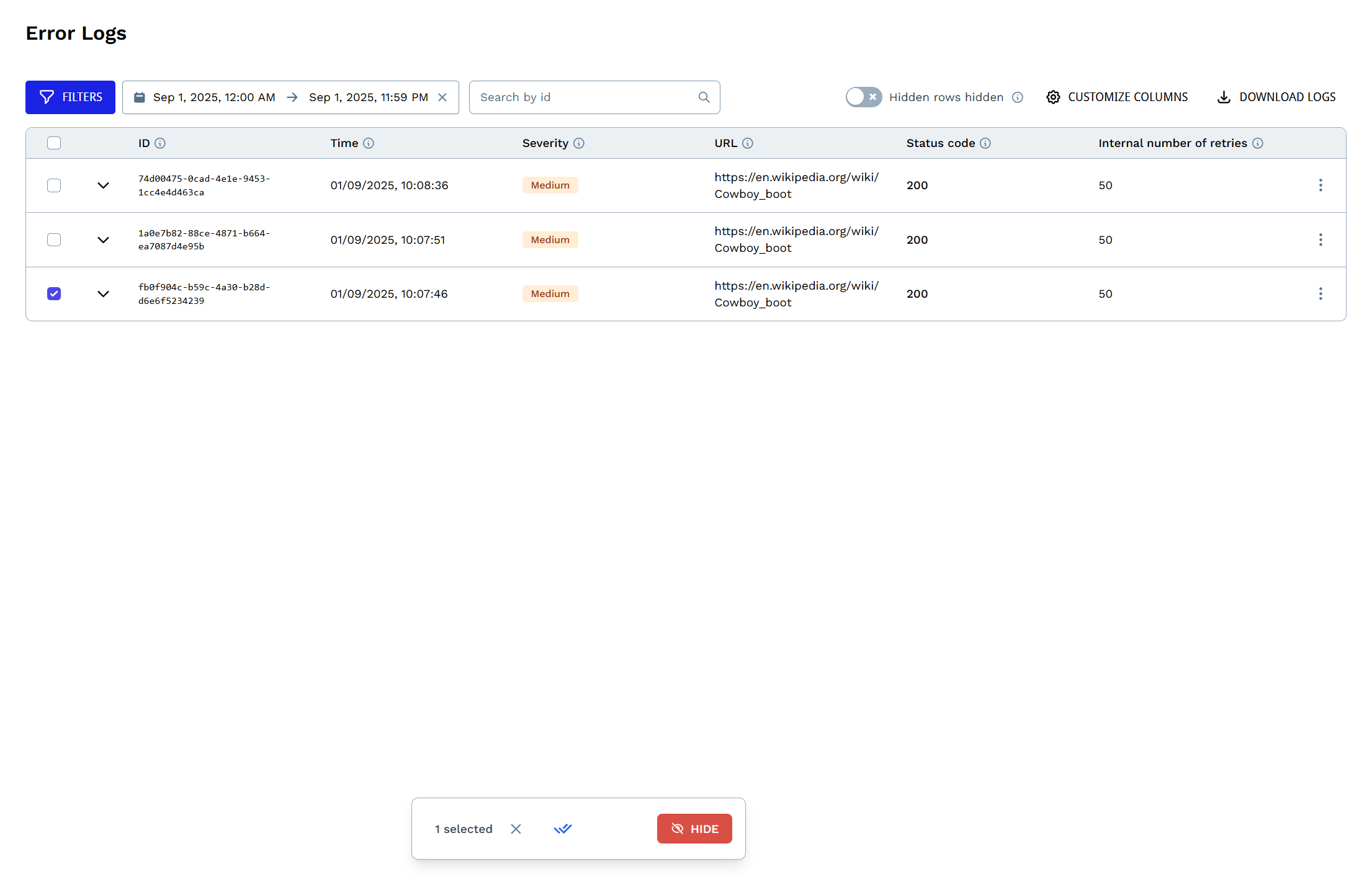
You can hide requests from the view, to focus only on the ones you want to analyze
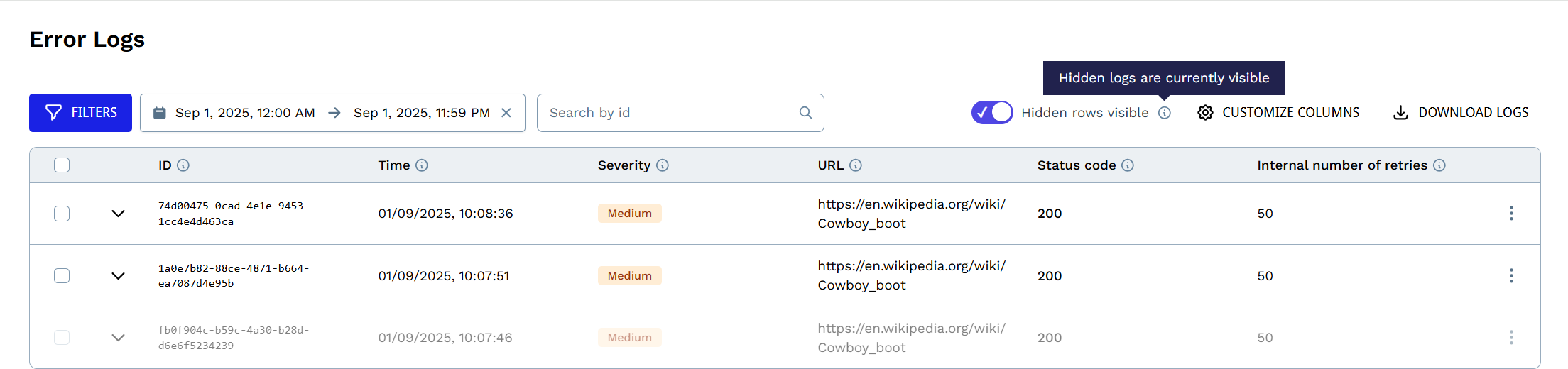
If you still wish to see those, simply toggle *Hidden rows* on
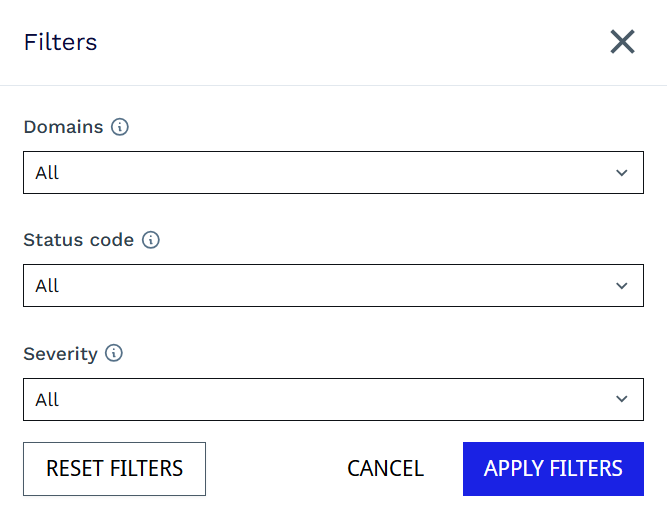
Logs can be filtered by Domains, Status code and Severity
Column customization lets you tailor the table layout to your needs
### Advanced Filtering
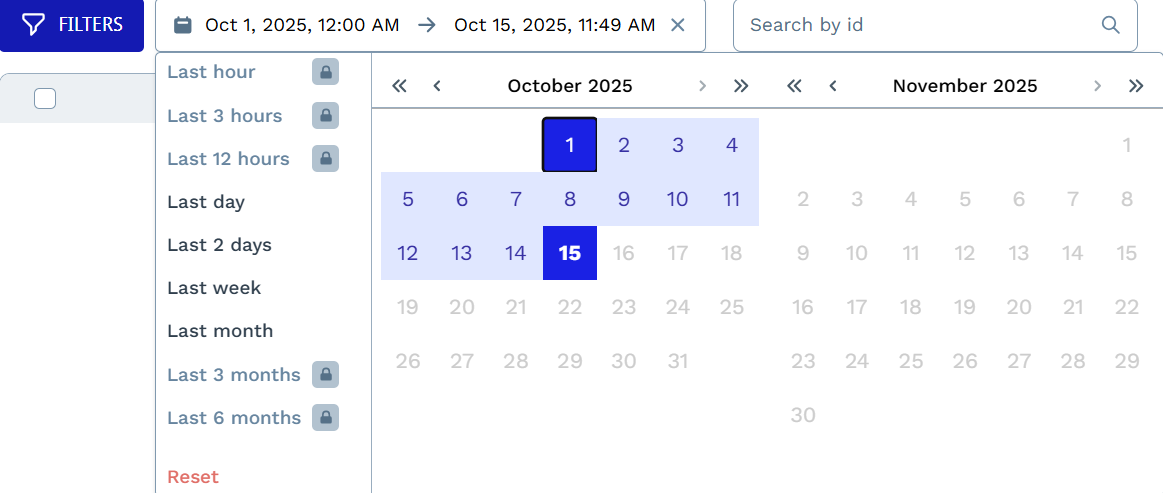
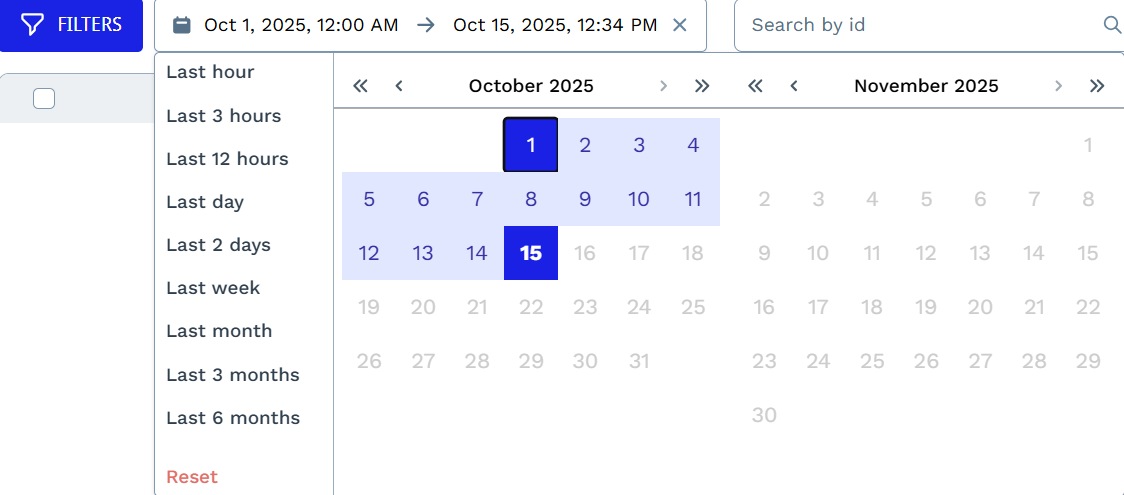
By default, all users have access to the standard time range filters for monitoring activity and performance.
These options cover most day-to-day monitoring needs. For deeper analysis, extended date ranges, like **last 3 months** and **last 6 months** are available with the **higher-tier** plans.
**Standard -** included with all plans**:**
* Last Day
* Last 2 Days
* Last Week
* Last 2 Month
**Advanced -** Business, Custom ($300+), and Enterprise Plans**:**
* Last Hour
* Last 3 Hours
* Last 12 Hours
* Last 3 Months
* Last 6 Months
When unlocked, the user gains access to extended historical data and longer date range filters inside the Analytics section, making it easier to track performance trends over time.
---
# Agent Instructions
This documentation is published with GitBook. GitBook is the documentation platform designed so that both humans and AI agents can read, navigate, and reason over technical content effectively. Learn more at gitbook.com.
## Querying This Documentation
If you need additional information that is not directly available in this page, you can query the documentation by asking a question.
Perform an HTTP GET request on the following URL with the `ask` and `goal` query parameters:
```
GET https://docs.scraperapi.com/account-management/analytics.md?ask=&goal=
```
`ask` is the immediate question: it should be specific, self-contained, and written in natural language.
`goal` is what the user is ultimately trying to achieve, the reason they need the answer. Sharing it helps GitBook give you a better, more relevant answer. A goal is most helpful when it describes the outcome the user wants rather than restating the question. For example, with `ask=how do I create an API token`, a goal like `automate deployments from our CI pipeline` lets GitBook tailor the answer to that use case.
The response will contain a direct answer to the question and relevant excerpts and sources from the documentation.
Use this mechanism when the answer is not explicitly present in the current page, you need clarification or additional context, or you want to retrieve related documentation sections.




 ### Error Logs
This section will help you understand more about the requests that failed. Each entry includes request ID, a timestamp, severity level, exact URL scraped, the status code returned for the request and how many retries were performed. This information will help you troubleshoot problematic domains, identify common errors and decide whether adjustments to your setup are necessary.
### Error Logs
This section will help you understand more about the requests that failed. Each entry includes request ID, a timestamp, severity level, exact URL scraped, the status code returned for the request and how many retries were performed. This information will help you troubleshoot problematic domains, identify common errors and decide whether adjustments to your setup are necessary.